Settings
The Settings section provides a range of options to configure the application, manage the backend server, and view system information. The settings are organized into several tabs.
Configuration
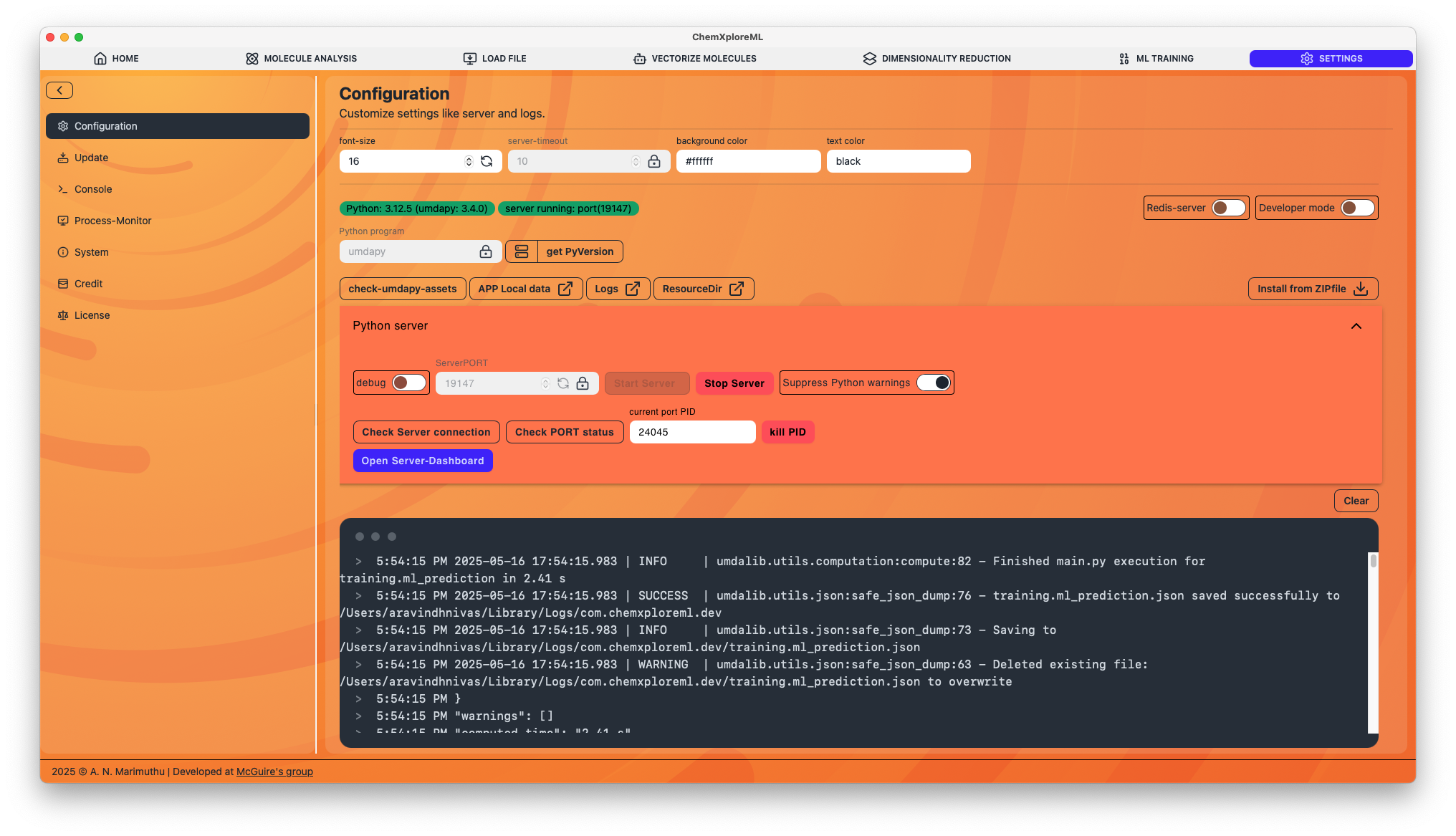
This is the main settings tab, where you can configure the Python backend, appearance, and other core settings.
Appearance
- Font Size: Adjust the global font size of the application.
- Colors: Customize the background and text colors.
Python Environment
- Developer Mode: This mode is for advanced users and developers. It allows you to specify a custom path to your Python executable and the source code directory for the
cxml_pypackage. This is useful for debugging or running custom versions of the backend. - Redis Server: Enable this if you are using a Redis server to manage background tasks. This is an advanced feature for handling long-running computations.
- Python Package: The UI displays the status of the Python backend, including the Python version and the version of the
cxml_pypackage. - Server Control: This section provides controls to start, stop, and restart the Python backend server. A terminal window below shows the server logs.
- Application Directories: Quick links to open the application's local data, log, and resource directories.
Update
This tab handles updates for both the ChemXploreML application and its Python assets.
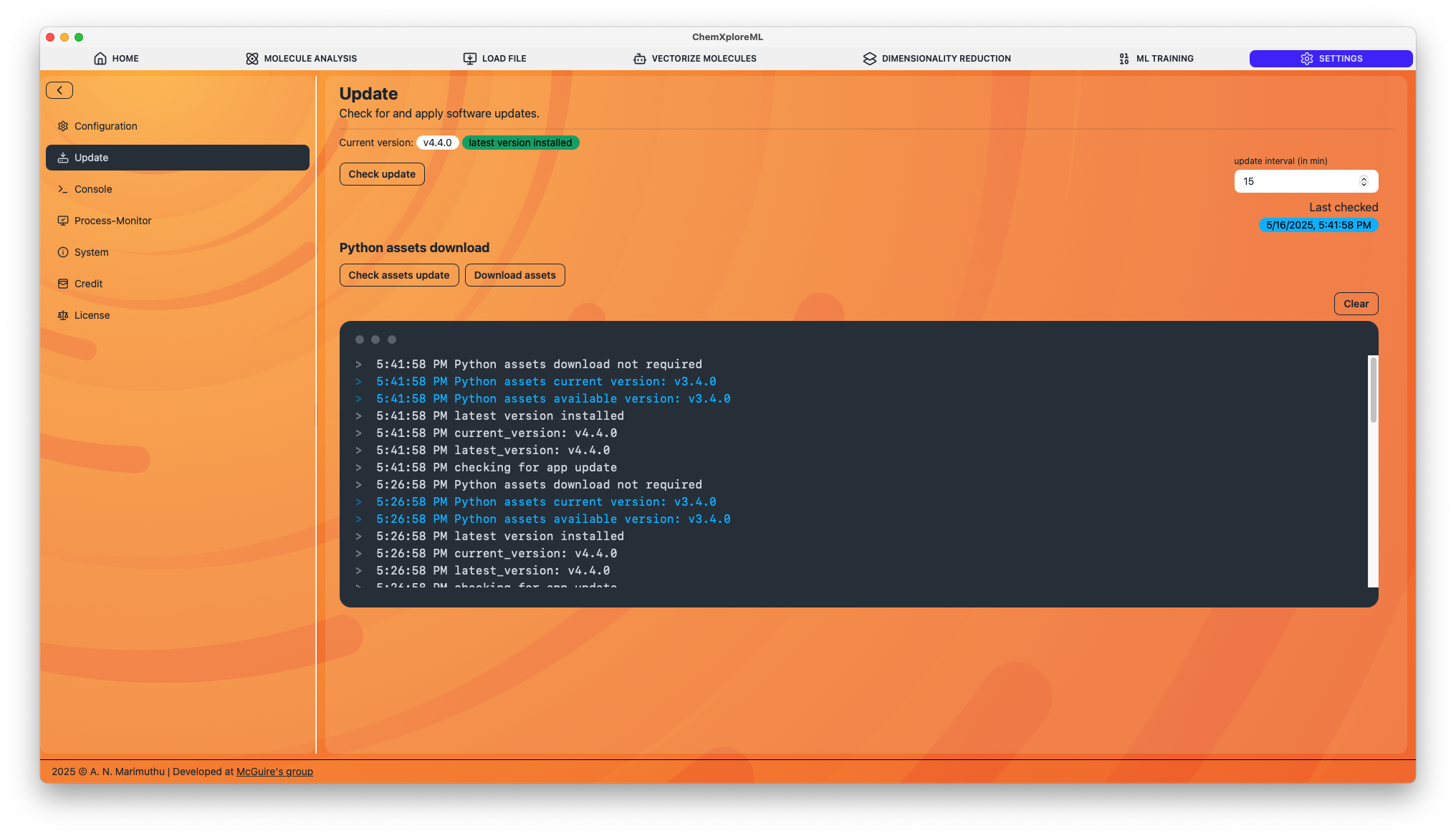
- Check for Updates: Manually check for new versions of the application.
- Update Interval: Set how frequently the application should automatically check for updates.
- Python Assets: Check for, download, and install updates for the Python backend package and other assets.
Process Monitor
This tab allows you to monitor the connection to the backend server and the Redis message queue (if enabled).
- Websocket Connection: Manually connect or disconnect the websocket that communicates with the Python server.
- RQ Dashboard: Open the Redis Queue (RQ) dashboard in your web browser to monitor the status of background jobs.
System
This is an informational tab that displays details about your system and the application's components.
- System: Your operating system, architecture, RAM, and CPU core count.
- Versions: The versions of ChemXploreML, Tauri, Python, and the
cxml_pypackage.
Console
This tab displays a log of messages from the application's backend and frontend, which can be useful for debugging.
Credit and License
These tabs display information about the developers, acknowledgments, and the software license.